Photo
Wagon

● Photo editor for iPhone and iPad

A Darkroom
In Your
Pocket

Real layers, real selections, real brushes, and an AI that erases what you don't want. A full photo editor that fits in your hand, and everything happens on your device.

iPhoneiPadApple Pencil
Opens
JPEG · PNG · HEIC · Raw · layered PSD
AI
On your device, works offline
Account
None. No ads, no tracking
Source
Open source on GitHub · MIT or Apache 2.0
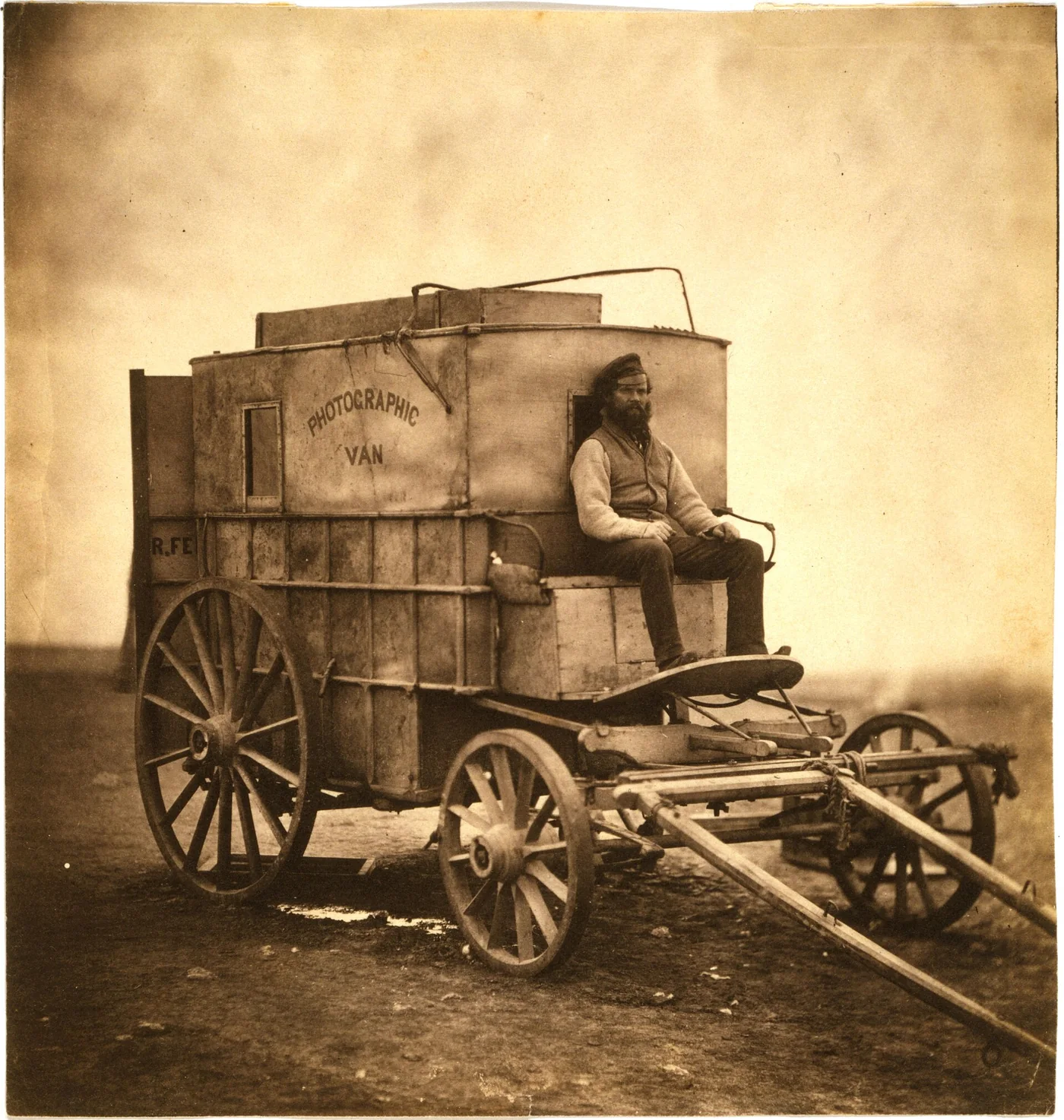
Roger Fenton's photographic van, 1855
Plate 01 — The photographic vanCrimea, 1855

Features●

If you've edited photos on a computer, you'll feel at home: the menus, tools and panels are where you'd look for them, laid out for touch.

#01 Erase

Erase Anything

Paint over a person, a wire or a stray balloon, or select it, and AI Remove fills the gap with what should be behind it. It runs on your iPhone, so your photos never leave it. Quick Fill, Spot Repair and Patch are here too.

Before: hot-air balloons, including three at the left edge After: AI Remove took out all but four of the balloons BeforeAfter
← Drag to compare →

#02 Layers

Layers That Work Like Layers

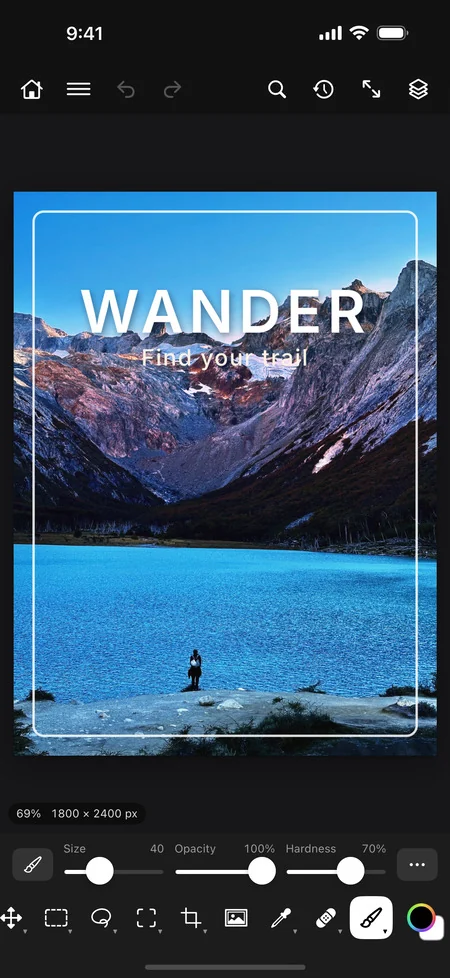
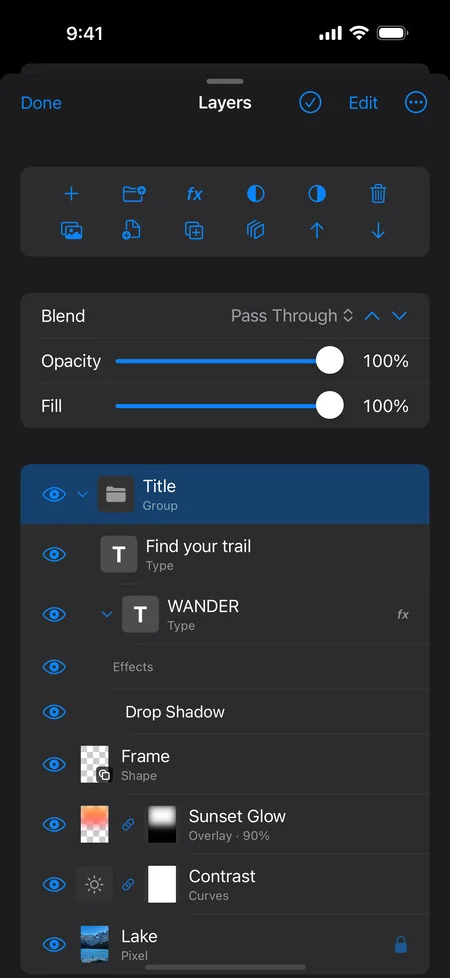
Stack pixel, type, shape and adjustment layers. Use masks, groups, blend modes and layer styles, and keep filters live so you can change them later. Open and save layered PSD files.

A poster made of layers: a lake photo with a title, frame and colour glowThe Layers panel: a group, type layers with a drop shadow, a shape, an overlay, a Curves adjustment and the photoGroups · effects · masks · PSD

#03 Develop

Develop Your Photos

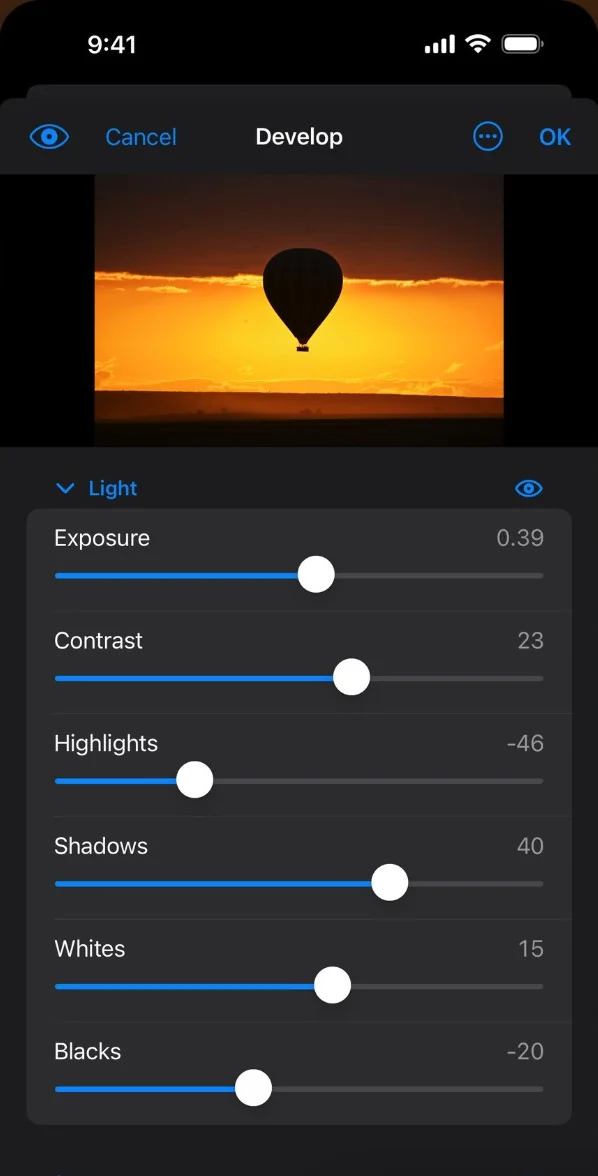
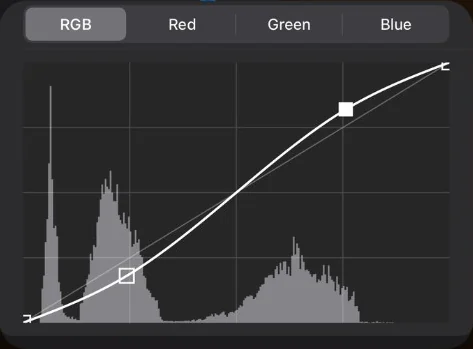
Open raw files, JPEG and HEIC in Develop for white balance, exposure, curves, colour and detail, with presets you can dial in. Levels, Curves and the other adjustments work on any layer.

Develop: Exposure, Contrast, Highlights, Shadows, Whites and Blacks slidersThe Curves panel over the photo's histogramExposure · tone · curves

#04 Filters

Dozens Of Filters

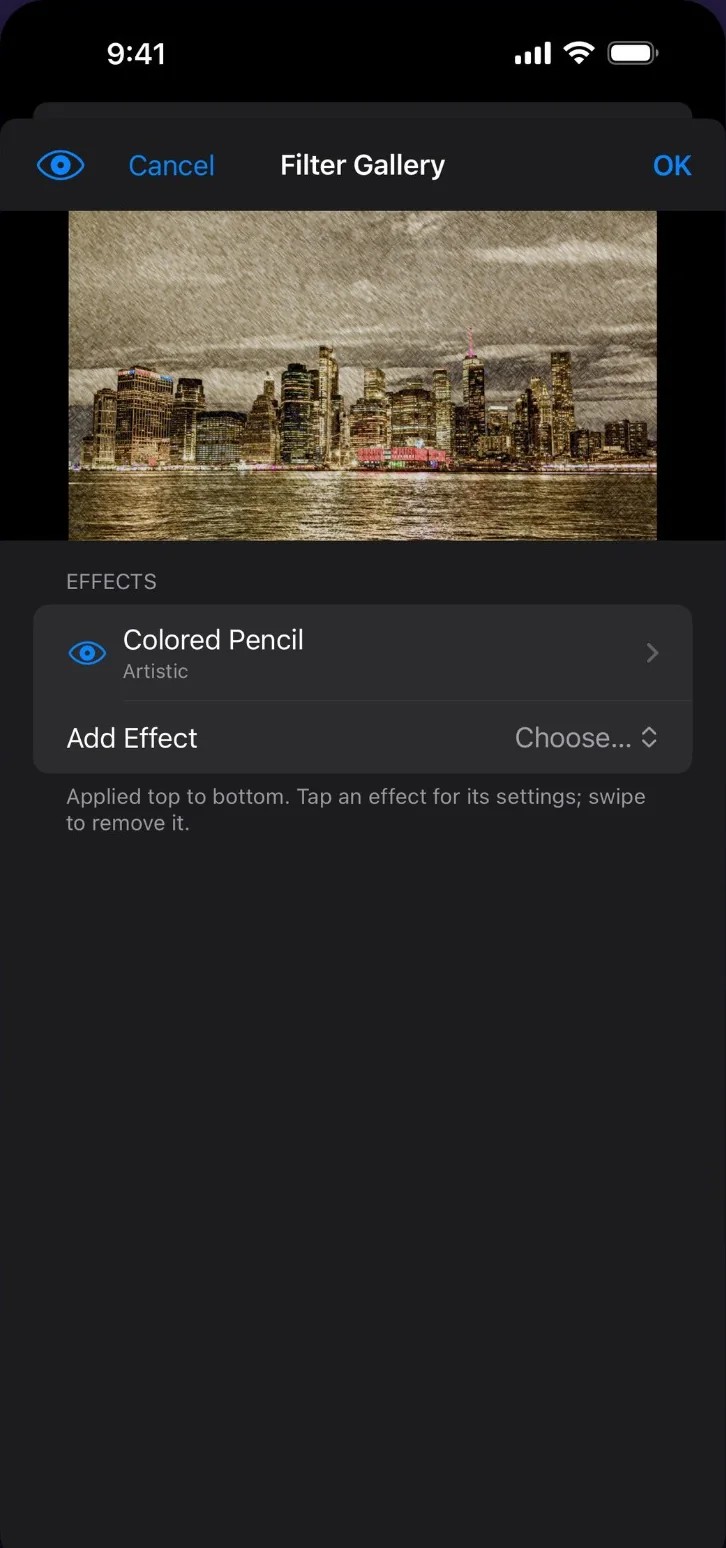
Blur, sharpen and distort, Fluid Warp, and a Filter Gallery of artistic effects you can stack and tune, like Colored Pencil.

The Filter GalleryBlur · distort · effects

And The Rest●

The everyday tools, done properly.

05SelectionsMarquee, lasso, Quick Selection, Magic Wand, Object Selection and Select Subject.
06BrushesFull brush settings, custom tips, symmetry and smoothing.
07HealingAI Remove, Quick Fill, Spot Repair, Repair Brush, Patch, and Move and Fill.
08Apple PencilPressure, tilt and barrel roll, with your own pressure curve.
09Keyboard and trackpadShortcuts, undo history and actions for repeat work.
10PrivateNo account, no ads, no tracking. Your photos stay with you.

#11 iPad

Made For
iPad Too

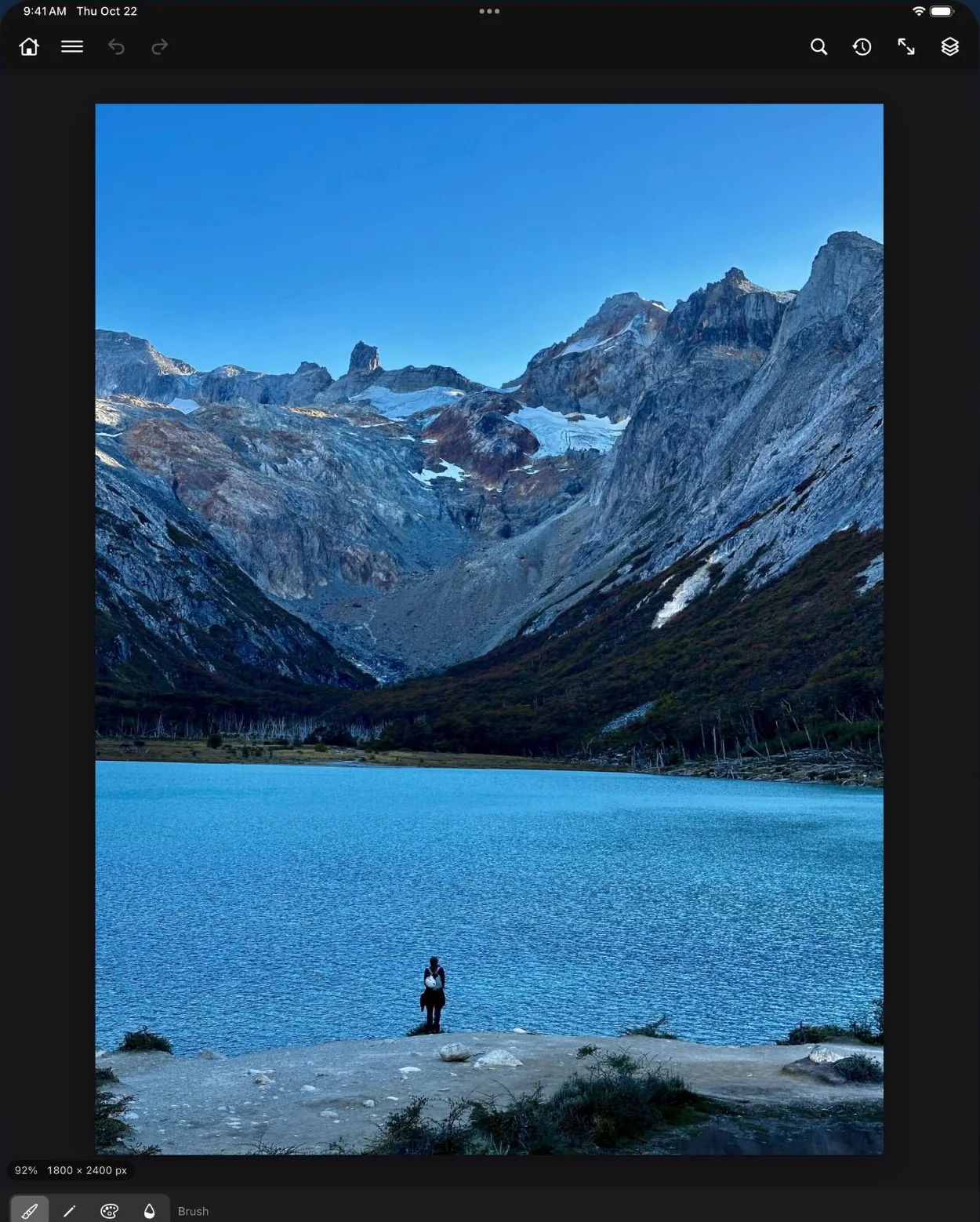
The same tools, with room to spread out. Apple Pencil does the fine work, and a keyboard and trackpad add shortcuts, scrolling, zooming and right-click.

PhotoWagon on iPad

Why “PhotoWagon”?

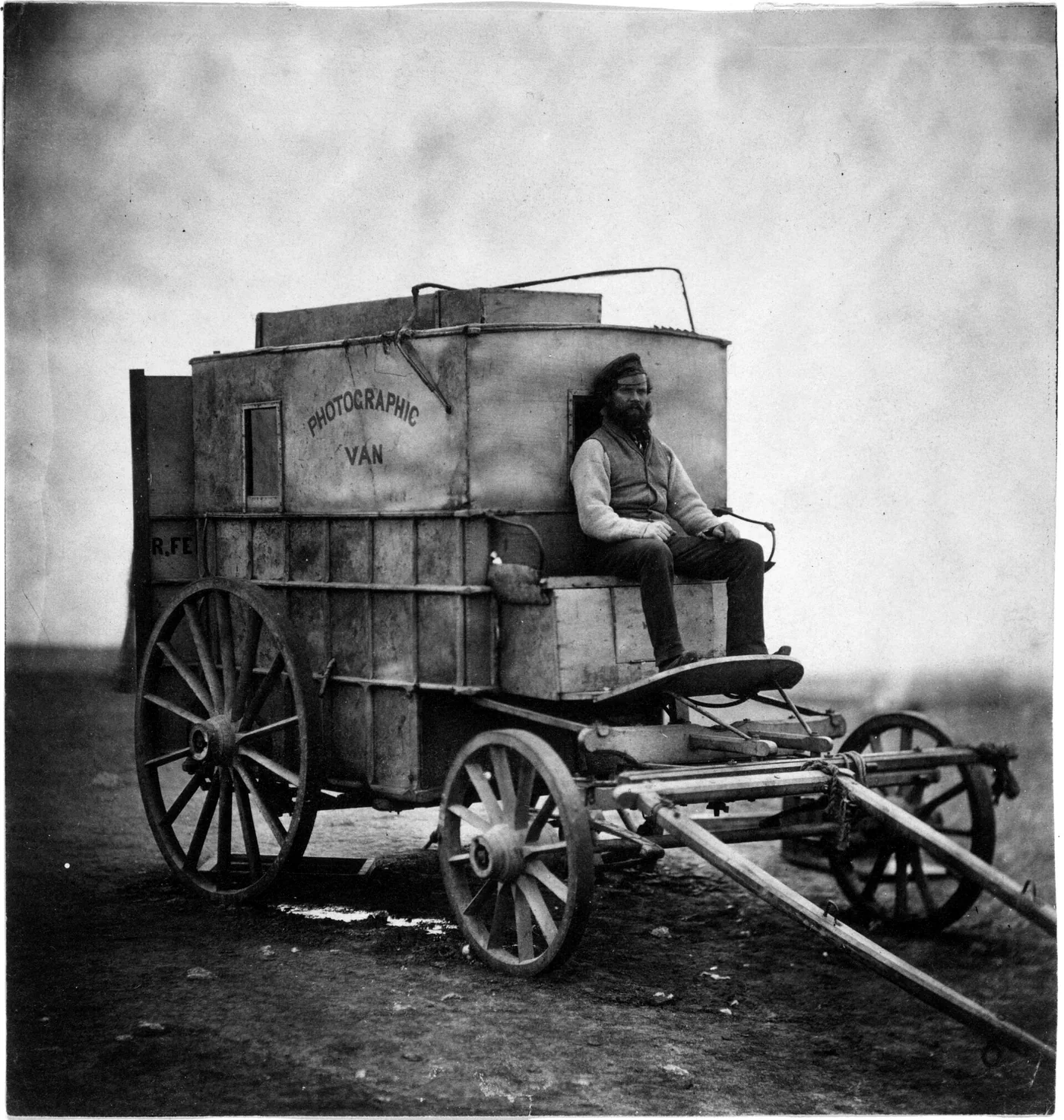
In 1855 the photographer Roger Fenton turned a wine merchant's van into a darkroom on wheels and took it all the way to the Crimean War. Glass plates had to be coated, exposed and developed within minutes, so the darkroom had to go wherever the pictures were.

PhotoWagon is that idea for today: a whole darkroom you can carry.

Roger Fenton's photographic van, with his assistant Marcus Sparling, 1855
Roger Fenton's van and his assistant Marcus Sparling. Library of Congress, public domain.

FAQs●

More on the support page, or in the app under ☰ › Help › Manual.

01Do my photos leave my device?

No. PhotoWagon has no account, ads or tracking, and editing happens on your device, AI Remove included. See the Privacy Policy.

02Why does AI Remove ask to download something?

AI Remove runs on your device, so it needs its model file (about 25 MB). It downloads once, the first time you use it, and then works offline. You can delete it in Preferences › General › AI.

03Which files can I open and save?

Open JPEG, PNG, HEIC, layered PSD, raw camera files and more, from Files or your photo library. Save as PSD or PhotoWagon's own format to keep layers, or export PNG, JPEG, WebP and other formats, at several sizes at once.

04Does it work with Apple Pencil, a keyboard or a mouse?

Yes. Apple Pencil gives you pressure, tilt and barrel roll, and you can set what double-tap and squeeze do. A keyboard adds shortcuts, and a trackpad or mouse works for scrolling, zooming and right-clicking.

05PhotoWagon closed before I saved. Is my work gone?

Probably not. PhotoWagon keeps a copy of unsaved work. Open Home and look under Recovered, then tap the image to open it again.

● iPhone and iPad

Develop
Something.

A whole darkroom for your iPhone and iPad.

Download on the App Store